Version 0.4 File Format Upgrade Path
Flipbook 0.4 now uses a different file format to save projects. This file format is saved inside of a single file instead of a folder, allows for much faster image importing, more responsive saving, and better flexibility in the future. The formats are incompatible and projects made prior to 0.3 will need to be manually upgraded to the new format.
Drastic file format changes will likely NOT happen again from now on. Sorry for the inconvenience!
To Upgrade:
1. Create a new project.
2. Open the import dialog, either by pressing Ctrl-Shift-I, or using the button inside of the open menu.
3. Locate the folder where the project was stored. By default projects are stored in "~/.var/app/page.codeberg.foolish.Flipbook/data/projects". Inside of this folder find the folder that is named after the project that you want to import. That folder contains all the information about the project.
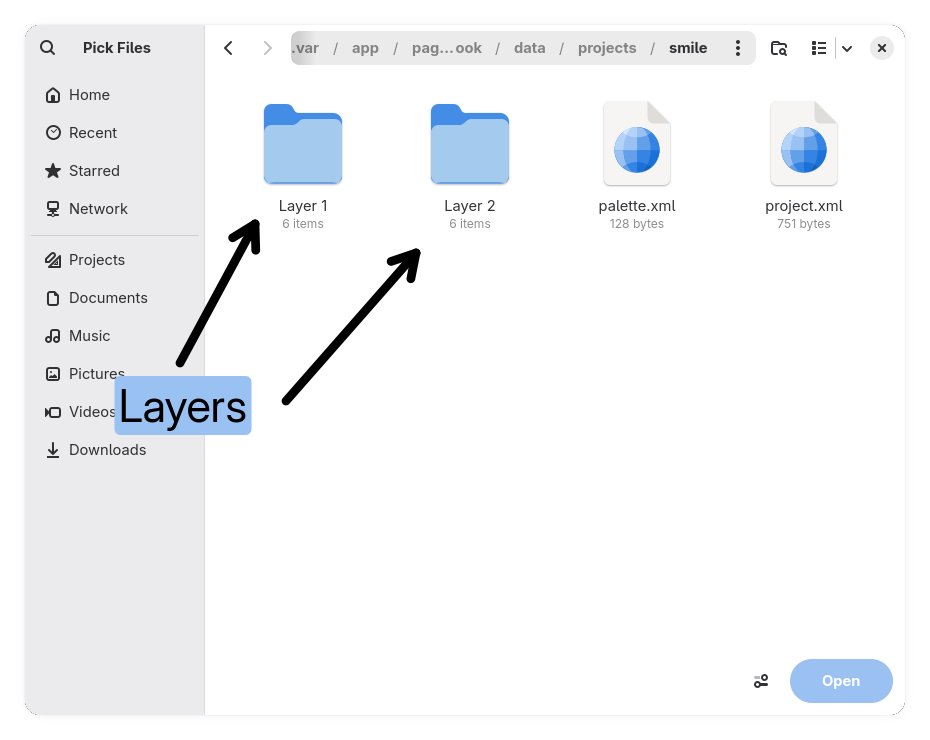
4. Each folder inside of the project's folder will contain images for the layer. You can select all the images in the folder to import a single layer. Hold frames will have to be manually set on the imported frames.
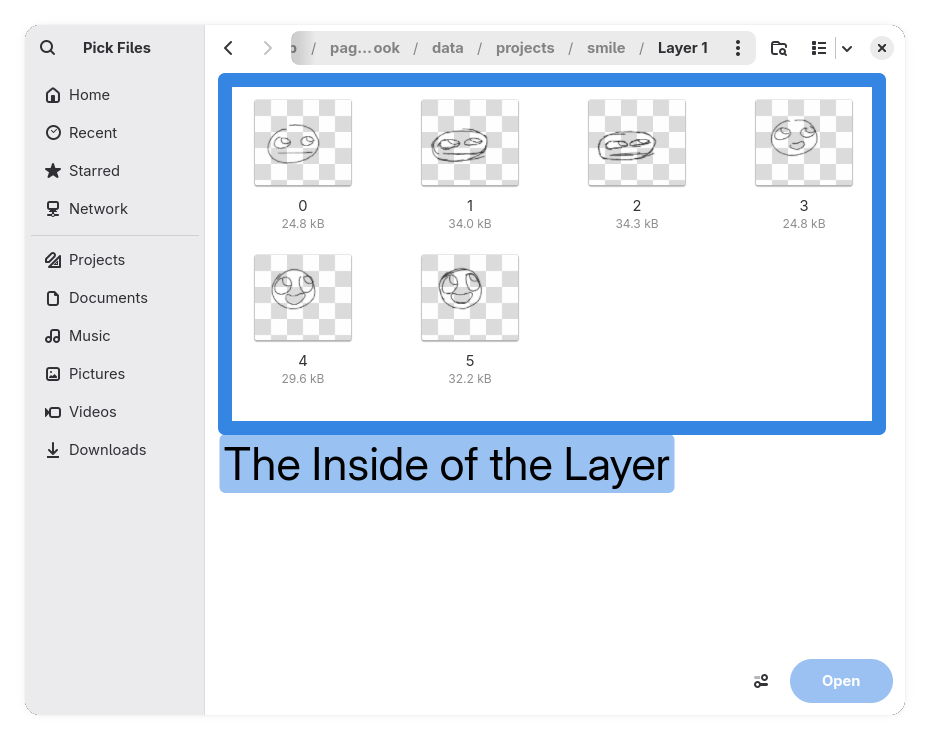
This process will have to be repeated for each layer that you want to import. Before importing another folder you should create a new layer so that new images will automatically go there.